TL;DR
- The fastest and most reliable way is adding the Romanian – Standard keyboard.
- For occasional use, press-and-hold or Character Viewer works.
- Option-key methods are powerful if you type diacritics often.
- Always use Ș / Ț with comma, not cedilla.

Romanian alphabet pronunciation hub
If you want the full system behind these sounds, see the Romanian alphabet pronunciation hub
Explore the practice hub →How to type Romanian letters on Mac (quick answer)
If you need to type ă â î ș ț on macOS, you have four practical methods:
- Add a Romanian keyboard layout (best long-term solution)
- Use press-and-hold accent menus
- Use Option-key shortcuts (with extended layouts)
- Use Character Viewer as a fallback
Below, we’ll walk through each method step by step so you can choose what fits your workflow.
Method 1: Add Romanian input source (recommended)
This is the most accurate and fastest method if you type Romanian regularly.
Step-by-step
- Open System Settings
- Go to Keyboard → Input Sources
- Click +
- Search for Romanian
- Add Romanian – Standard
- Enable Show Input menu in menu bar
You can now switch keyboards using:
- Control + Space
or - The Input menu in the menu bar
Why this method is best
- Correct Ș / Ț with comma
- Native Romanian layout
- No guessing or copy-paste
- Works in all apps
You can also open Keyboard Viewer to see where each letter is mapped.
Method 2: Press-and-hold keys (quick and simple)
For occasional typing, macOS lets you press and hold a key to show accent marks.
How it works
- Hold A → choose ă / â
- Hold I → choose î
- Hold S → choose ș
- Hold T → choose ț
You can select:
- By clicking
- Or by pressing the number shown
- Or with arrow keys + Space bar
Limitations
- Not available in all apps
- Slower for frequent typing
- Less precise if you type fast
Good for emails or short notes, not for long texts.
Method 3: Option-key methods (advanced users)
If you often type accent marks in multiple languages, consider using:
- ABC – Extended input source
How to enable it
- System Settings → Keyboard → Input Sources
- Add ABC – Extended
This layout uses dead keys:
- Press a modifier (Option)
- Then type the letter
You can open Keyboard Viewer to see all accent combinations in real time.
This method is popular with power users and linguists.
Method 4: Character Viewer (fallback)
If you can’t remember shortcuts, Character Viewer always works.
How to open
- Press Control + Command + Space
- Or click Edit → Emoji & Symbols
Search for:
- “Romanian”
- Or paste directly: ă â î ș ț
Best used as a backup, not for daily typing.
How to type Romanian letters on iPhone
iOS supports Romanian letters natively, and setup takes under one minute.
Method 1: Add Romanian keyboard (best option)
- Open Settings
- Go to General → Keyboard → Keyboards
- Tap Add New Keyboard
- Select Romanian
- Switch keyboards using the globe 🌐 icon
Method 2: Long-press letters (quick use)
With the Romanian keyboard enabled:
- Long-press A → ă â
- Long-press I → î
- Long-press S → ș
- Long-press T → ț
Works in Safari, Messages, Notes, and third-party apps.
Method 3: iOS auto-correction
When Romanian is added as a keyboard:
- iOS suggests correct diacritics automatically
- Predictions improve as you type more Romanian
Tip: Type full words correctly once to train suggestions.
iPhone typing problems (and solutions)
- Cedilla letters (Ş / Ţ) → Update iOS
- No Romanian suggestions → Add Romanian as a keyboard, not just a language
- Too many keyboards → Remove unused ones to reduce globe cycling
Quick reference (mobile typing)
| Letter | Android | iPhone |
|---|---|---|
| Ă | Long-press A | Long-press A |
| Â | Long-press A | Long-press A |
| Î | Long-press I | Long-press I |
| Ș | Long-press S | Long-press S |
| Ț | Long-press T | Long-press T |
Correct Romanian letters (important!)
Always use comma-below letters:
✔ Ș ș
✔ Ț ț
❌ Ş ş (cedilla – wrong)
❌ Ţ ţ (cedilla – wrong)
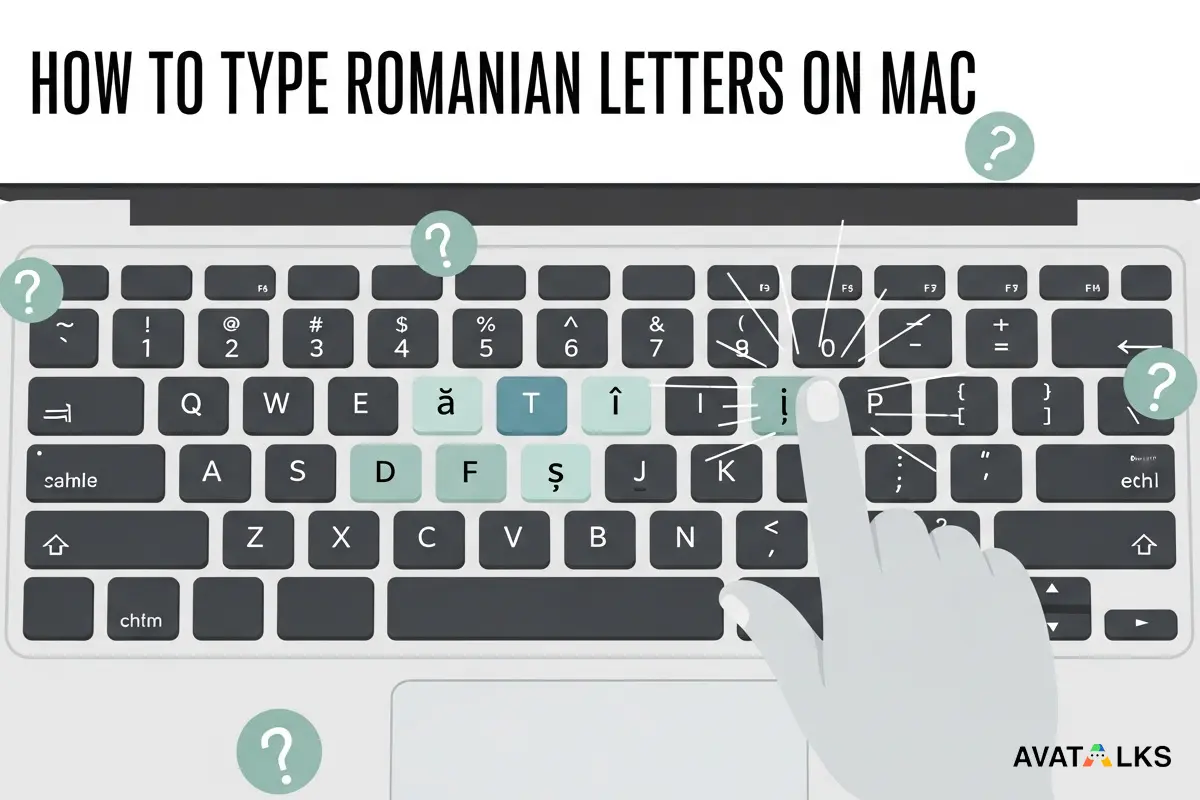
Modern Romanian requires comma, and incorrect characters may cause:
- Spelling errors
- Search issues
- OCR and text-to-speech problems
Troubleshooting common issues
“I can’t find Romanian in Input Sources”
- Make sure Language & Region includes Romanian
- Restart System Settings if needed
“Press-and-hold doesn’t work”
- Some apps disable accent menus
- Use Romanian keyboard or Character Viewer
“Ș / Ț look wrong”
- Check Unicode: must be comma, not cedilla
- Re-type using Romanian layout
Which method should you choose?
- Learning Romanian / typing often → Romanian – Standard keyboard
- Occasional use → Press-and-hold
- Advanced multilingual typing → ABC – Extended
- Emergency fallback → Character Viewer
How this fits into Romanian typing overall
Typing Romanian correctly is part of mastering:
- Romanian alphabet
- Pronunciation rules
- Stress and diacritics
If you want a complete system, see our guides on:
- Romanian alphabet
- Special letters (Ă Â Î Ș Ț)
- Pronunciation and stress
Final takeaway
If you use a Mac, typing Romanian letters is easy once set up properly.
Add the Romanian keyboard once, and you’ll never struggle with ș / ț / ă / â / î again.
Correct typing leads to:
- Better spelling
- Better pronunciation habits
- More confidence when writing Romanian
Next steps:
See How to type Romanian letters on Windows or return to the Romanian alphabet pronunciation hub to connect stress with real sound patterns.