
Typing Romanian becomes much easier once you know how to enter the five letters that do not appear on a standard English keyboard:
- Ă ă
- Â â
- Î î
- Ș ș
- Ț ț
Whether you use a Mac or Windows PC, the best long-term solution is usually to add a Romanian keyboard layout. If you only type Romanian occasionally, both operating systems also provide quicker alternatives.
This guide shows you the easiest methods for macOS and Windows, including keyboard setup, accent menus, Alt codes, character tools, and simple backup options.
TL;DR
| Device | Best method | Good backup |
|---|---|---|
| Mac | Romanian keyboard layout | Press-and-hold or Character Viewer |
| Windows | Romanian keyboard layout | Alt codes |
| Shared / locked computer | Browser or copy-paste | Character tools |
For regular Romanian typing, use the Romanian keyboard layout.
For occasional typing:
- Mac: press-and-hold or Character Viewer
- Windows: Alt codes or copy-paste
And always use the modern Romanian letters Ș / Ț with comma below, not the older cedilla forms.

Romanian alphabet pronunciation hub
If you also want to hear how Romanian letters sound, use our pronunciation guide alongside your typing practice.
Explore the practice hub →The Romanian letters you need
Modern Romanian uses five letters with diacritics:
| Uppercase | Lowercase |
|---|---|
| Ă | ă |
| Â | â |
| Î | î |
| Ș | ș |
| Ț | ț |
You will see them constantly in Romanian words such as:
- mână — hand
- română — Romanian
- în — in
- școală — school
- țară — country
Learning to type them correctly is worth doing early if you are studying Romanian regularly.
Important: use Ș and Ț with a comma below
The correct modern Romanian letters are:
- Ș ș
- Ț ț
Avoid the older cedilla versions:
- Ş ş
- Ţ ţ
They can look almost identical depending on the font, but they are different Unicode characters.
For modern Romanian writing, use the comma-below forms.
This matters especially when:
- searching dictionaries
- copying text between apps
- using text-to-speech
- processing text programmatically
- studying spelling accurately
A proper Romanian keyboard layout normally gives you the correct characters automatically.
How to type Romanian letters on Mac
For macOS users, there are four practical methods.
The best one depends on how often you type Romanian.
Method 1: Add the Romanian keyboard on Mac
This is the best solution if you type Romanian regularly.
On recent versions of macOS:
- Open System Settings
- Select Keyboard
- Find Text Input
- Click Edit
- Click +
- Search for Romanian
- Add the Romanian input source
After adding it, you can switch between your normal keyboard and Romanian from the Input menu in the menu bar.
Depending on your keyboard settings, you can also use a keyboard shortcut to switch input sources.
Why the Romanian layout is best
A dedicated layout lets you:
- type Romanian directly
- avoid constantly copying characters
- use the correct Ș and Ț
- write longer Romanian texts much faster
- build muscle memory over time
If Romanian is part of your regular language study, this is the method I recommend.
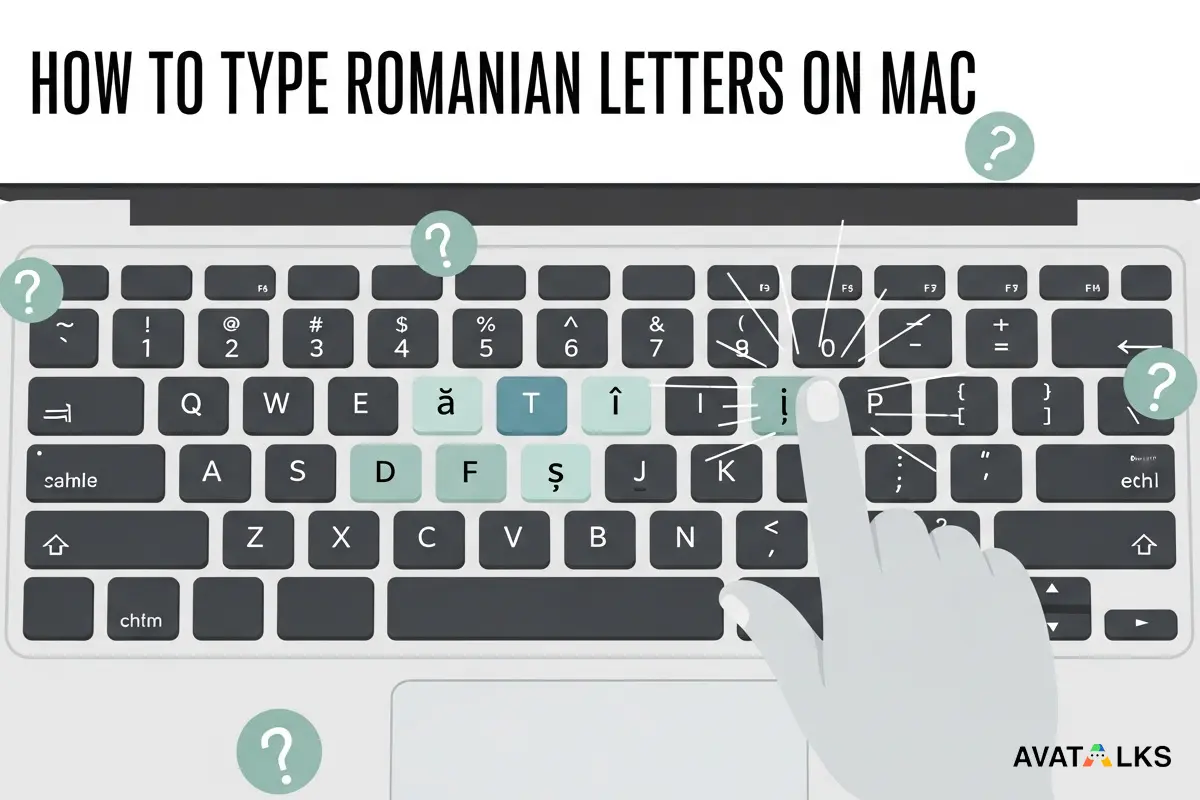
Use Keyboard Viewer to learn the Mac layout
When you first add Romanian, you may not know where every special character is located.
macOS includes Keyboard Viewer, which displays the active keyboard layout on screen.
It is useful because you can see:
- Romanian character positions
- Shift combinations
- Option-key combinations
- how the layout changes when modifier keys are pressed
This is especially helpful during your first few days using the Romanian keyboard.
Method 2: Use the Mac press-and-hold accent menu
If you only need Romanian occasionally, you may not need to switch keyboard layouts.
In many Mac apps, pressing and holding a letter opens an accent menu.
For example, depending on the app and input source, holding a letter may give you alternate accented forms.
This is useful for:
- short emails
- notes
- messages
- occasional Romanian words
When press-and-hold is useful
Choose this method if:
- you mostly type in English
- you only write a few Romanian words at a time
- you do not want to learn a second keyboard layout
Limitation
Press-and-hold is slower when writing full Romanian sentences.
If you find yourself using Romanian every day, switch to the proper Romanian keyboard instead.
Method 3: Use Character Viewer on Mac
Character Viewer is a reliable fallback when you cannot remember how to type a particular character.
You can normally open it with:
Control + Command + Space
Then search for or select the Romanian character you need.
You can also copy these directly if necessary:
ă â î ș ț
Ă Â Î Ș Ț
Character Viewer is especially useful for:
- checking Unicode characters
- correcting an incorrectly typed letter
- inserting a character into a document
- occasional Romanian typing
Which Mac method should you use?
| Situation | Best Mac method |
|---|---|
| You write Romanian regularly | Romanian keyboard |
| You occasionally type a few letters | Press-and-hold |
| You want to learn the key positions | Keyboard Viewer |
| You need a character you cannot find | Character Viewer |
For most serious learners:
Romanian keyboard + Keyboard Viewer is the best combination.
How to type Romanian letters on Windows
Windows also supports a Romanian keyboard layout, and this should be your first choice if you type the language frequently.
Method 1: Add the Romanian keyboard on Windows
On current Windows versions:
- Open Settings
- Select Time & language
- Open Language & region
- Add Romanian / Română if it is not already installed
- Open the language options
- Add the Romanian keyboard layout
Once installed, you can normally switch keyboard layouts with:
Windows + Space
You can then move between English, Romanian, and any other installed input languages.
Why this method is best
The Romanian layout lets you:
- type without interrupting your workflow
- enter the correct Romanian characters
- stop memorizing codes
- write longer Romanian text naturally
If you study Romanian regularly, learning the layout is much more efficient than relying on Alt codes.

Method 2: Use Windows Alt codes
Alt codes can be useful when you cannot change the keyboard layout.
They are especially helpful on:
- work computers
- shared machines
- older software
- systems where installing another input language is inconvenient
Common Romanian characters can be entered using numeric codes.
| Character | Unicode value |
|---|---|
| Ă | U+0102 |
| ă | U+0103 |
| Â | U+00C2 |
| â | U+00E2 |
| Î | U+00CE |
| î | U+00EE |
| Ș | U+0218 |
| ș | U+0219 |
| Ț | U+021A |
| ț | U+021B |
The exact way Windows applications handle Alt-code input can vary, so the Romanian keyboard layout is still more reliable for everyday use.
When Alt codes make sense
Use them when:
- you cannot install Romanian
- you only need one or two characters
- you are working on a restricted machine
They are less practical for writing paragraphs.
Method 3: Copy and paste Romanian letters
For occasional typing, copy-paste is perfectly acceptable.
Save this somewhere convenient:
ă â î ș ț
Ă Â Î Ș Ț
This works well for:
- quick searches
- short messages
- usernames
- correcting text
- one-off documents
It is not a good long-term learning method because it prevents you from becoming comfortable with the keyboard.
Method 4: Use a browser-based Romanian keyboard
If you are on a public computer or cannot change system settings, an online keyboard can be useful.
The basic workflow is:
- Type Romanian in the browser tool
- Copy the finished text
- Paste it into your document or app
This is convenient for temporary situations but unnecessary if you control your own computer.
Which Windows method should you use?
| Situation | Best Windows method |
|---|---|
| You type Romanian regularly | Romanian keyboard |
| You cannot change system settings | Alt codes |
| You only need a few characters | Copy-paste |
| You use a public or locked computer | Browser-based keyboard |
Again, the full Romanian keyboard is the best long-term option.
Mac vs Windows: which is easier for Romanian typing?
Both operating systems handle Romanian well once the correct input language is installed.
| Feature | Mac | Windows |
|---|---|---|
| Full Romanian keyboard | Yes | Yes |
| Quick keyboard switching | Yes | Yes |
| Visual keyboard viewer | Yes | Available through Windows tools |
| Accent / character picker | Character Viewer | Character Map and other tools |
| Convenient occasional method | Press-and-hold | Alt codes |
| Best for regular use | Romanian layout | Romanian layout |
There is no major advantage to either operating system.
The important thing is simply to set up Romanian input correctly instead of relying on workarounds forever.
Common problems and fixes
My Ș and Ț look wrong
Check whether you accidentally typed:
Ş / Ţ
instead of:
Ș / Ț
The first pair uses cedilla-like characters.
The second pair uses the correct Romanian comma-below characters.
If you are unsure, switch to an official Romanian keyboard layout and retype the word.
I cannot find Romanian on my Mac
Go back to:
System Settings → Keyboard → Text Input
and add Romanian as an input source.
If you have multiple languages installed, also make sure the Input menu is enabled so you can see which layout is active.
I cannot find Romanian on Windows
Open:
Settings → Time & language → Language & region
and check whether Romanian has been installed.
After adding it, use:
Windows + Space
to switch layouts.
The Mac accent menu does not appear
Some applications handle key presses differently.
If press-and-hold does not work reliably, use:
- Romanian keyboard
- Character Viewer
instead.
Windows Alt codes are not working
Alt-code behavior can depend on:
- the application
- numeric keypad availability
- Num Lock
- Windows input settings
If you find yourself troubleshooting codes repeatedly, installing the Romanian layout is usually easier.
Why typing Romanian correctly matters
Romanian diacritics are not decorative.
They are part of the normal spelling system.
Correct typing helps with:
- reading
- writing
- dictionary searches
- pronunciation study
- text-to-speech
- search engines
- language-learning tools
For example, writing Romanian without diacritics may still be understandable informally, but learners should become comfortable with the correct forms:
ă, â, î, ș, ț
Using them from the beginning reinforces accurate spelling.
Practice Romanian typing with real words
Once your keyboard is configured, do not practice the letters only in isolation.
Try common Romanian words:
| Romanian | English |
|---|---|
| bună | hello / good |
| română | Romanian |
| mână | hand |
| în | in |
| și | and |
| școală | school |
| țară | country |
| mulțumesc | thank you |
Typing whole words helps you remember where the characters are much faster than repeatedly typing:
ă â î ș ț
Connect typing with pronunciation
Typing becomes much more useful when you also know what the letters sound like.
For example:
- ă has its own Romanian vowel sound
- â and î represent the same vowel sound in modern Romanian but appear in different spelling positions
- ș sounds similar to English sh
- ț sounds similar to ts
For a complete pronunciation guide, continue with:
Romanian Alphabet Pronunciation
Which method is best overall?
If you only remember one thing from this guide, use this rule:
If you type Romanian often
Install the Romanian keyboard.
If you type Romanian occasionally on Mac
Use:
- press-and-hold
- Character Viewer
If you type Romanian occasionally on Windows
Use:
- Alt codes
- copy-paste
If you are on a restricted computer
Use:
- Character Viewer / Character Map
- browser-based typing
- copy-paste
The correct tool depends on how frequently you write Romanian.
Frequently asked questions
What are the special Romanian letters?
Romanian uses five letters with diacritics:
Ă, Â, Î, Ș, and Ț
Their lowercase forms are:
ă, â, î, ș, and ț
How do I type Romanian letters on a Mac?
For regular use, add Romanian under System Settings → Keyboard → Text Input.
For occasional typing, use the accent menu or Character Viewer.
How do I type Romanian letters on Windows?
Add Romanian through Settings → Time & language → Language & region and switch keyboards with Windows + Space.
For occasional use, Alt codes or copy-paste can work as backups.
What is the difference between Ș and Ş?
Ș is the correct modern Romanian character and uses a comma below.
Ş is the older cedilla form.
The same distinction applies to:
Ț vs Ţ
Use Ș and Ț for modern Romanian writing.
Can I write Romanian without diacritics?
Romanian is sometimes typed without diacritics in informal situations, especially when a suitable keyboard is unavailable.
However, learners should use the correct letters whenever possible because diacritics are part of standard Romanian spelling.
Final thoughts
Typing Romanian is straightforward once you set up the right input method.
Both Mac and Windows already provide good solutions, so you do not need to rely permanently on copy-paste or special codes.
For regular writing:
Install the Romanian keyboard.
For occasional typing:
- Mac users can use press-and-hold or Character Viewer
- Windows users can use Alt codes or copy-paste
Most importantly, make sure you are typing the correct modern forms:
Ă Â Î Ș Ț
Once these letters become part of your normal keyboard workflow, Romanian typing stops feeling like a technical task and starts feeling like ordinary writing.